Login Help

The following instructions will guide you through the process of resetting your password. Please pay close attention to each step.

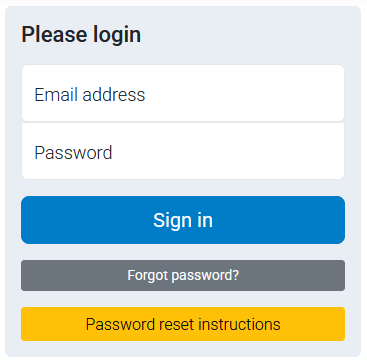
Please verify the titles on the page match the titles in the instructions. If you do not see the same titles, you may be on the wrong page.
Step 1. Visit the login page:
https://shop.thecmp.org/login
Login Page
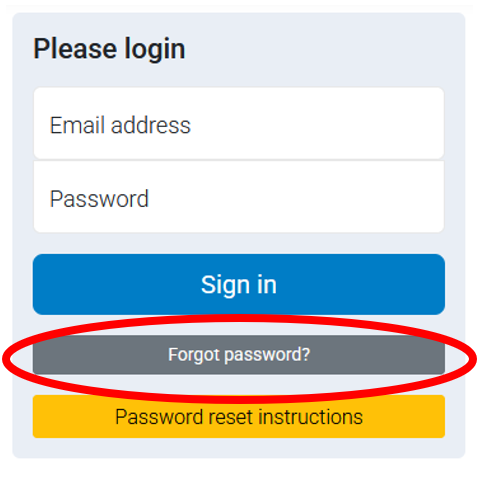
Step 2. Click the button that says "Forgot Password"
Login Page
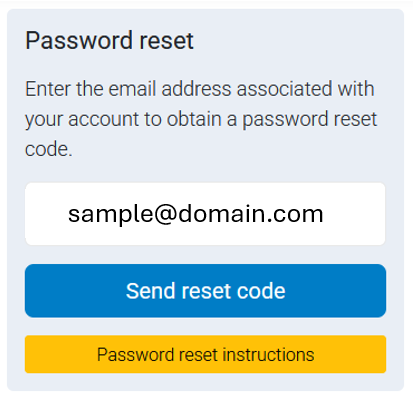
Step 3. Enter your email address and click "Send reset code"
Login Page
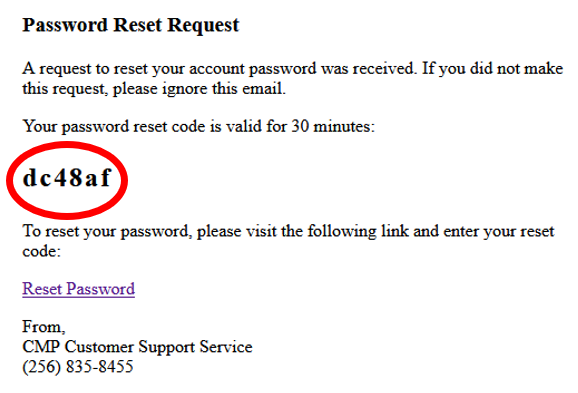
Step 4: Check for Password Reset Request Email:
Make sure you check your spam folder or junk folder if you do not see the email in your inbox. The email will be sent from [email protected].

The code sent to you in the email will be 6 characters long. It is required before you can continue.
Login Page
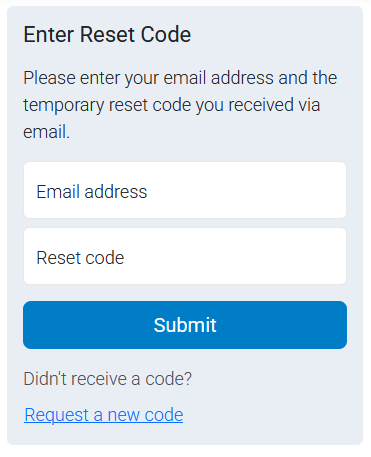
Step 5: Visit the following page:
https://shop.thecmp.org/reset
This is the page you enter the code provided in the email. The code IS NOT a password.
Login Page
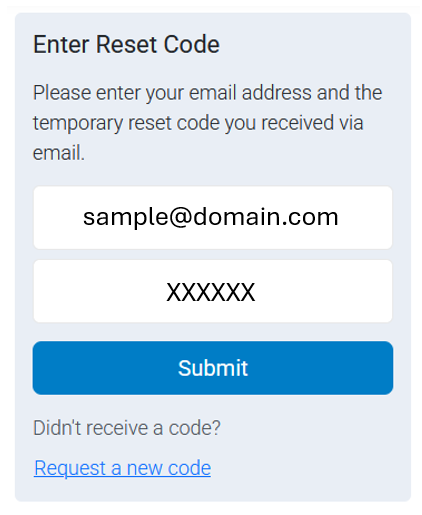
Step 6: Enter your email address and the code.
The code was sent to you in the email illustrated in the previous step.
The code will be 6 characters long and was sent to you in the email.
Login Page
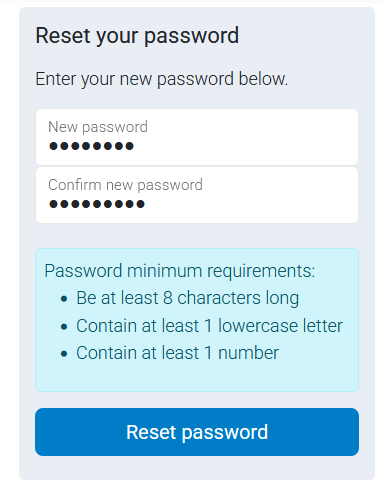
Step 7: Specify new password
If your email address and code are correct, you will now be able to specify a new password.
If your code is not accepted go back to step 5 and try your code again.
Login Page
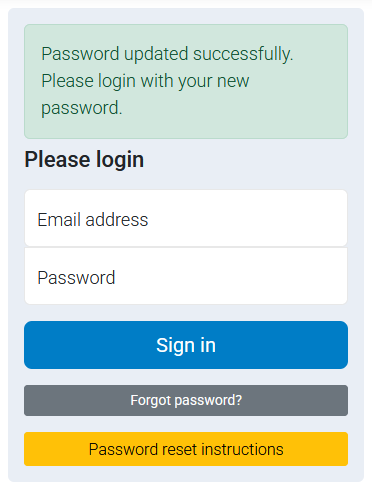
Step 8: Now login
After you have entered your new password, you will be asked to login. Click the following link:
https://shop.thecmp.org/login
Enter the password you specified in step 7.
Login Page